
To monitor the last run time and last task result for a scheduled task in Windows Task Scheduler, the below PowerShell script will help you to do it by using PRTG Network Monitoring tool to run the script in timely intervals, evaluate the result and take the action of notification
1- To start with, we need to get the Scheduled Task Info, place the name of your scheduled task after the below command in the same format, in my case, the scheduled task is TestMonitor
Get-ScheduledTaskInfo “TestMonitor”
Output:

2- Next we are interested in getting the last run time and save it in a variable, here we will call it “x”
$x = (Get-ScheduledTaskInfo “TestMonitor”).LastRunTime
And run $x to see the stored value

3- Now we will get the current date and time to compare it with the last run, and store it in another variable called “y”
$y= Get-Date
And run $y to see the stored value

4- Notice that the date format is the same in variable x and y
5- In this step, we will minus the two variables -> current date and time minus the scheduled task last run time, and save it in a variable “timelr”
$timelr = New-TimeSpan -Start $x -End $y
And run $timelr to see the stored value

6- Now, we can start adding the second verification which is Last Task Result
To get the last task result we will run the below command, from the result of Get-ScheduledTaskInfo we will take the LastTaskResult, this will return the result as decimal
(Get-ScheduledTaskInfo “TestMonitor”).LastTaskResult
Output:

As you can see the task result (in task scheduler) result appear as Hexadecimal, and each hexadecimal number, represent a specific message

So, we need to convert this number to Hexadecimal using ‘{0:x}’ -f, and we will save it in the variable $LastTaskResult
$LastTaskResult= ‘{0:x}’ -f ((Get-ScheduledTaskInfo “TestMonitor”).LastTaskResult)
Output of the variable:

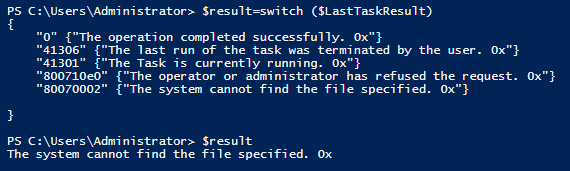
7- In this step, we will build a switch statement that will replace the Hexadecimal value with the corresponding string message, and we will save the result in a variable $result
Here, you can add and other combination of hexadecimal-message values in the switch with the same format to make it appear in the message of the alert later
Note, 0x at the end is just for formatting the output to look similar to the output of task result in task scheduler
$result=switch ($LastTaskResult)
{
“0” {“The operation completed successfully. 0x”}
“41306” {“The last run of the task was terminated by the user. 0x”}
“41301” {“The Task is currently running. 0x”}
“800710e0” {“The operator or administrator has refused the request. 0x”}
“80070002” {“The system cannot find the file specified. 0x”}
}
Output of the variable:
8- lastly, we have the If statement that will evaluate the information gathered and determine the output/return
In this test I will be verifying the last run by minutes feel free to change to other mentioned value in step 5 depending on your scheduled task schedule
We will be placing it in an if-else statement to evaluate the time span for last run and the task last result
Then we will be returning a specific value depending on the evaluation of if-else statement
if(($timelr.Minutes -gt 5) -or (($LastTaskResult -notlike “0”) -and ($LastTaskResult -notlike “41301”))){
return(“4:Task last run time is “+$timelr+” and Last Task Result is “+$result+$LastTaskResult)
}else{
return(“0:OK Task last run time is “+$timelr+” and Last Task Result is “+$result+$LastTaskResult)
}
The example is that the scheduled task should run each 5 minutes
if the time span minutes for last run is more than 5Min or the task result is neither 0 (success) nor 41301 (task currently running) – we have used a combination of operators to structure the condition using -gt (grater than), -or, -notlike (to represent the Not matching condition), -and – the condition will return the message in “value:message” format, which in our case: “4:Task last run time: “+$timelr+” and Last Task Result: “+$result+$LastTaskResult this message is specific to PRTG to interpret and if you are using another monitoring method you can modify the return message accordingly
4 will represent the Down state on the sensor and the text after the colon will be the message displayed on this state
Else if the time span is anything else, means less than 5Mins or task result is either 0 (successful) or 41301 (task currently running) , it will return “0:OK Task last run time: “+$timelr+” and Last Task Result: “+$result+$LastTaskResult, 0 represent the OK on PRTG which is the healthy green state of the sensor and the message displayed will be the text result after the colon
You can modify what to include and exclude in the healthy/down condition according to your need
Output:

The complete code will be:
$x=(Get-ScheduledTaskInfo “TestMonitor”).LastRunTime
$y= Get-Date
$timelr = New-TimeSpan -Start $x -End $y
$LastTaskResult= ‘{0:x}’ -f ((Get-ScheduledTaskInfo “TestMonitor”).LastTaskResult)
$result=switch ($LastTaskResult)
{
“0” {“The operation completed successfully. 0x”}
“41306” {“The last run of the task was terminated by the user. 0x”}
“41301” {“The Task is currently running. 0x”}
“800710e0” {“The operator or administrator has refused the request. 0x”}
“80070002” {“The system cannot find the file specified. 0x”}
}
if(($timelr.Minutes -gt 5) -or (($LastTaskResult -notlike “0”) -and ($LastTaskResult -notlike “41301”))){
return(“4:Task last run time is “+$timelr+” and Last Task Result is “+$result+$LastTaskResult)
}else{
return(“0:OK Task last run time is “+$timelr+” and Last Task Result is “+$result+$LastTaskResult)
}
Sample output:

At this stage we need to add the sensor in PRTG, save the script as .ps1 in the EXE custom script folder of your PRTG installation, in my case it is the default path “C:\Program Files (x86)\PRTG Network Monitor\Custom Sensors\EXE”
In PRTG
1- locate the device you want to add the sensor on, then select add sensor.
Note: keep in mind if there will be any required configuration if you are running on the script on a remote computer

2- Select the EXE/Script sensor

3- In the sensor settings, select the PowerShell file you saved, and click create

4- Click on the channel “Value”

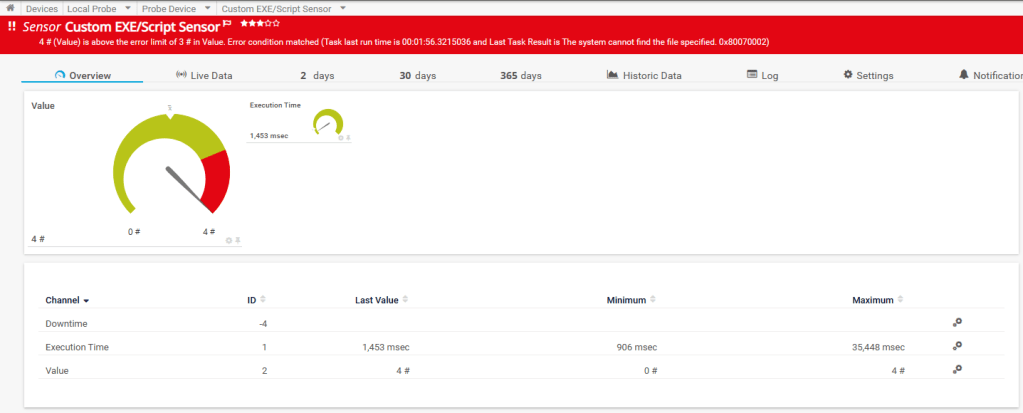
5- Place the upper error limit to be 3, so when it reaches 4 the sensor will be in the down state
And keep the wanted error message, I have kept it as “Error condition matched”

Below is when the task match the error condition
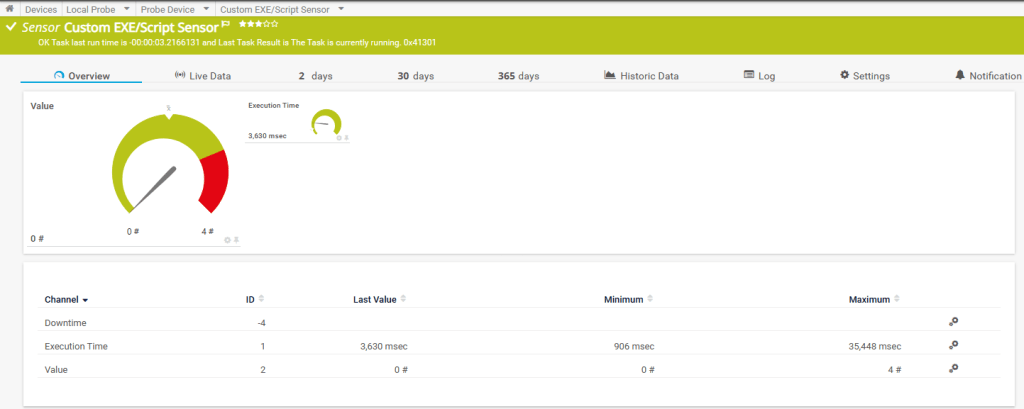
Below is when the task is running normally, and match the healthy condition
If you are interested to know more details about the return value formatting of custom PRTG sensors check this Paessler webpage.
 Fingerprint in IT
Leave a comment