
This blog post will explain a simple and easy way to export the system information for multiple PRTG devices at once and to be on the same Excel file together using API, PowerShell, and Excel.
The API to get the system information for one device is as below (mentioned in this Paessler KB)
http://prtg.example.com/api/table.json?id=40&content=sysinfo&columns=_key,_value,_id,_adapter,_receivetime,_displayname&category=system&username=prtgadmin&passhash=12345678Note 1: make sure to replace the sample with your PRTG data and creds, http/https, PRTG server name/IP, username, and passhash.
We will also change the output to be in csv format instead of json as below
http://prtg.example.com/api/table.csv?id=40&content=sysinfo&columns=_key,_value,_id,_adapter,_receivetime,_displayname&category=system&username=prtgadmin&passhash=12345678As we will use it to have multiple devices together, we need to add an identifier for the devices, we will add the device name and IP to the columns
http://prtg.example.com/api/table.csv?id=40&content=sysinfo&columns=device,host,_key,_value,_id,_adapter,_receivetime,_displayname&category=system&username=prtgadmin&passhash=12345678Note 2: if you use PRTG API quite often, you may consider having a dedicated account for that purpose and assigning it the required access permissions only.
We will use the below PowerShell command to retrieve the API call result
Invoke-Webrequest -skipcertificatecheck -URI “https://…“
-skipcertificatecheck: Skips all certificate validation checks, including: expiration, revocation and trusted root authority, (this link is for more information on Invoke-Webrequest cmdlet).
To use -skipcertificatecheck you need to download the latest PowerShell version, in my case it is PowerShell 7.3.4
Let’s try running the command with the API call
Invoke-Webrequest -skipcertificatecheck -URI "https://127.0.0.1/api/table.csv?id=40&content=sysinfo&columns=device,host,_key,_value,_id,_adapter,_receivetime,isplayname&category=system&username=user&passhash=123456"The Status Code is showing 200, which is success, the data that we will be interested in is the content section, so let’s get that part only
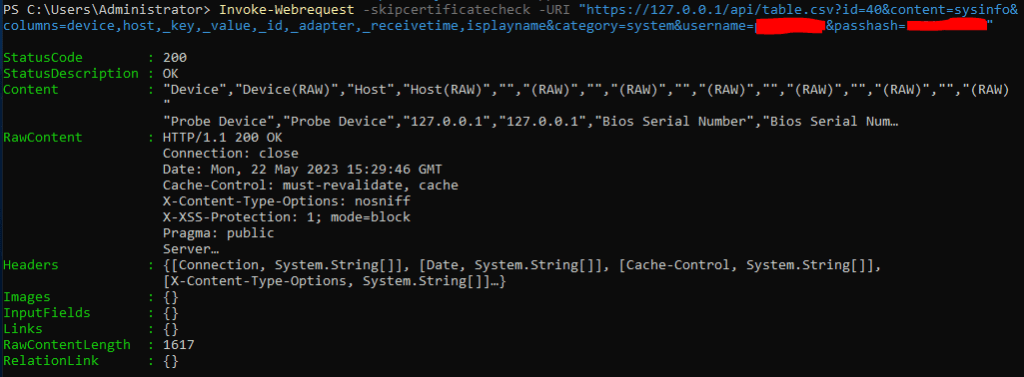
(Invoke-Webrequest -skipcertificatecheck -URI "https://127.0.0.1/api/table.csv?id=40&content=sysinfo&columns=device,host,_key,_value,_id,_adapter,_receivetime,isplayname&category=system&username=user&passhash=123456").ContentAnd we will get the system information details only

Then, we need to output this content to csv file by piping the output to “Out-File -FilePath “” -Append“, Out-File cmdlet will help us to preserve the csv formatting, while exporting to excel, in -FilePath we need to provide the path that we want to save the file in (remember to keep the file as .csv), -Append is for appending on the same file when we run it for multiple devices together.
(Invoke-Webrequest -skipcertificatecheck -URI "https://127.0.0.1/api/table.csv?id=40&content=sysinfo&columns=device,host,_key,_value,_id,_adapter,_receivetime,isplayname&category=system&username=user&passhash=123456").Content | Out-File -FilePath "C:\Users\Administrator\Desktop\test.csv" -AppendAfter running the command test.csv will be created in the specified path (if it does not already exist)

Now, we want to add multiple devices together in one file, for that we will use excel to make it easier and faster, the only thing that will change is the device ID, let’s split the command to 3 parts:
Part 1: (Invoke-Webrequest -skipcertificatecheck -URI “https://127.0.0.1/api/table.csv?id=
Part 2: the device ID
Part 3: &content=sysinfo&columns=device,host,_key,_value,_id,_adapter,_receivetime,isplayname&category=system&username=user&passhash=123456″).Content | Out-File -FilePath “C:\Users\Administrator\Desktop\test.csv” -Append
Each part will be in one excel column, keep the second column to have all IDs of devices you want, and copy column 1 (part1) and column 3 (part 3) to reach same raw as column 2 (device IDs)

Then, in the 4th column, we will concatenate the previous 3 cells to make the complete command
We will write “=CONCAT” and select the first 3 cells as below, and they will automatically add to the equation, close the brackets and click enter

And drag the cell down to replicate the formula to the other columns, this give us the complete command in column D

After that, copy column D and paste it in column E as Values, to get rid of the equations in the background
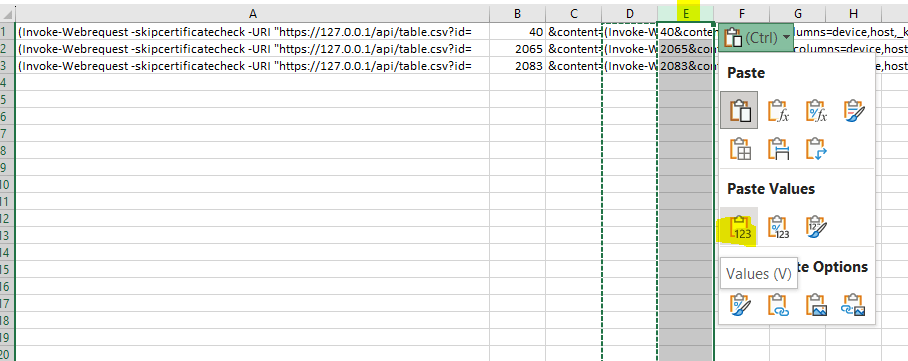
Copy the cells in column E

Paste them in PowerShell, and click enter, and wait for the prompt to return to know that the operation is completed

Now we will check the output CSV file, at this stage you can remove the duplicated columns (RAW) and give column headings names for the ones missing it, information will be populated in same order as mentioned in columns in the API call
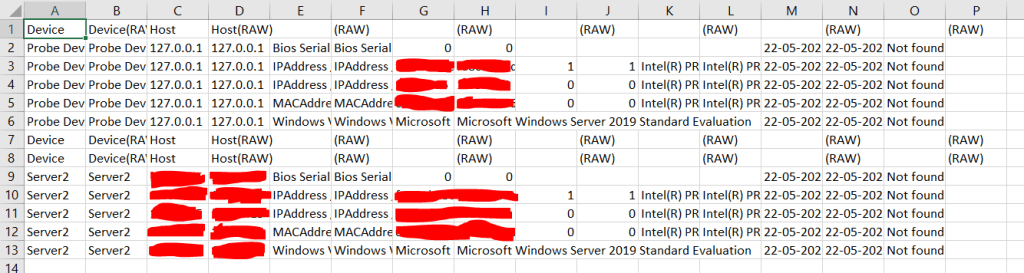
You see that row 7 does not have details, this is because the device itself in PRTG does not have system information
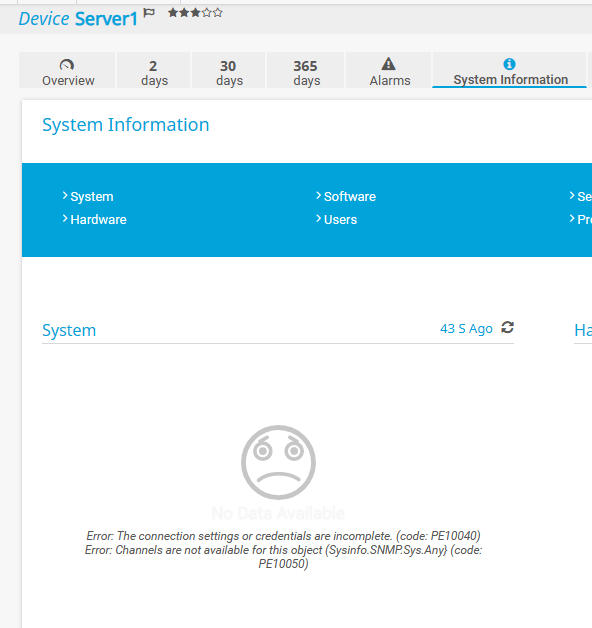
If you want to get system information for all PRTG devices, then you can export all devices IDs from the below API, count=* is to include all devices, without it PRTG will limit the output number to 500
/api/table.csv?content=devices&output=csvtable&columns=parentid,objid,probe,group,device,host&count=*From the output, you can copy all devices IDs and if you want to confirm specific IDs, you can see the device name and IP on the same row.
Parent ID refer to the group or the probe that the device in, you can use it or any other column to filter for the needed devices to get their ID as well.

 Fingerprint in IT
Leave a comment