
Many applications log their important events in Windows Event Viewer. Here comes the importance of applying the monitoring of the important events as part of the IT monitoring.
Below PowerShell script will help in monitoring the needed event ID along with the path it resides in
Firstly, we will get the event ID and the “channel” information as below for example:

param (
    [string]$ID,
    [string]$LogPathChannel
)
Then, we will get last 200 events logged in past 20 mins, you can change those values according to the logging behavior
$RecentLogs=Get-WinEvent -Logname $LogPathChannel -maxevents 200 | Where-Object {$_.timecreated -GT (get-date).AddMinutes(-20)}
After that we will search for the supplied event ID and store the result
$found = $RecentLogs | Where-Object {$_.Id -eq $ID}
Using an if statement, we will evaluate the result, if the search returned Logs were not found at all, it will return message for error in retrieving values
if ($RecentLogs -eq $null) {
    return ("3:Error retrieving values")
And if the ID was found it will return a message mentioning the same along with the ID
} elseif ($found){
    return ("4:The Event ID "+$ID+" has been triggered")
Lastly, if ID was not found it will return healthy message
} elseif ($found -eq $null) {
    return ("0:OK")
And if non condition got matches we will capture the issue and present “Unrecognized output”
} else {
    return ("2:Unrecognized output")
}
This script output was customized to be integrated with PRTG Network Monitor, however you can customize it to integrate with any tool you are using or application use.
To integrate it with PRTG, and monitor custom Event ID through PRTG below are the steps:
1- You need to store the script in the probe that will be performing the monitoring to the device, below is the default path, if you changed the installer path you need to store it according to that:
C:\Program Files (x86)\PRTG Network Monitor\Custom Sensors\EXE
2- Add new sensor EXE/Script sensor

3- Select the stored file, and supply the parameters in order in below format (we got this info from first picture in this post)

4- As the healthy response will be only 0, we will set threshold on the channel “Value” as error on anything grater than 0 as below

5- You can change the sensor name and scanning interval to be matching the measure values applied in the script, for the values applied in this example, we can set scanning interval of the sensor to be every 15 mins to make it less intense
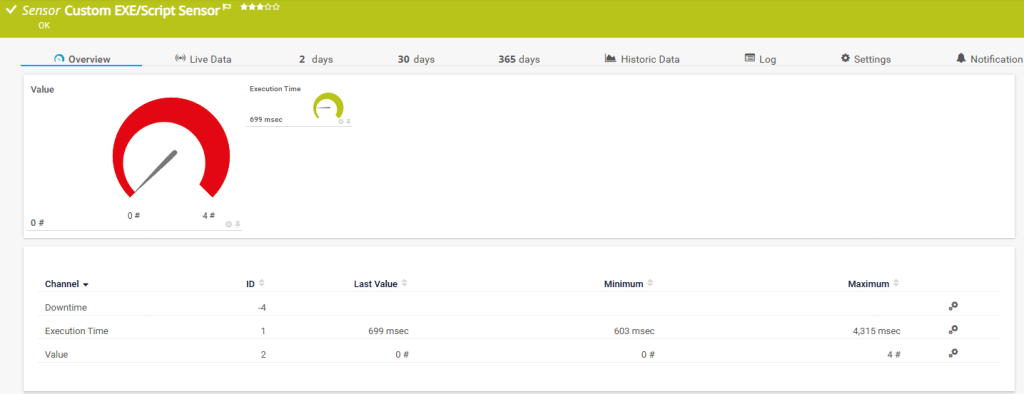
Below is how the sensor will be when event will be triggered

Below is when the ID is not detected
Below is the full PS script:
param (
    [string]$ID,
    [string]$LogPathChannel
)

$RecentLogs=Get-WinEvent -Logname $LogPathChannel -maxevents 200 | Where-Object {$_.timecreated -GT (get-date).AddMinutes(-20)}
$found = $RecentLogs | Where-Object {$_.Id -eq $ID}

if ($RecentLogs -eq $null) {
    return ("3:Error retrieving values")
} elseif ($found){
    return ("4:The Event ID "+$ID+" has been triggered")
} elseif ($found -eq $null) {
    return ("0:OK")
} else {
    return ("2:Unrecognized output")
} Fingerprint in IT
Leave a comment