
If you are in a situation where you check a specific Linux command output to verify if there is a failure in the operation, and you are looking for a way to detect a particular words in the output and alert on it, we will explain the procedure in this article.
We will write a bash script that detects specific words and integrates it with PRTG Network Monitor to trigger an alert in case of success, you can integrate the script in any monitoring tool if you know how the tool parse the data, so you can adjust the script accordingly.
1- Create a new path in the Linux machine /var/prtg/scripts as this is the path PRTG reads from.
2- Create inside above path a file with .sh extension using vi editor, I will call mine stringmon.sh
vi stringmon.sh3- Start writing the script (full script at the end of the page): we will take the script in chunks to elaborate on each part. In this example, for simplicity will use the output of service status command as our string to search in, but you can replace it with any command you want. Make sure you test the script and it is giving you the needed result.
#!/bin/bash

text1=dead
text2=inactive
4- In the above we have 2 words that we want to search for in the output of the command that will check the service status (we will show later), “dead” and “inactive” both will show up when the service is stopped in Linux. If you need to check more words, you can add, text3, text4, etc. in the same format.
res=$(systemctl status swap.target | grep -e $text1 -e $text2)5- Now, we will define a variable called “res” this variable will hold the line that the text is found in (if any), we will be using it to print it in the result later.
- systemctl status swap.target is used to check the status of the service “swap.target” which is our demo service used in this example.
- “|” the pipe is used to take the output of the previous command and pass it as input to the next command.
- grep -e $text1 -e $text2 is used to search the words we defined in text1 and text2 in the output of the previous command for checking the service status.
- If you added, text3 and text4 you can add them in same format: grep -e $text1 -e $text2 -e $text3 -e $text4
- res = $( ) is used to capture the output of the command inside the parentheses and assign it to “res”.
if (systemctl status swap.target | grep -q -e $text1 -e $text2 -e $text3); then6- In this line we are using almost the same command as the previous one, but with two differences.
- The first: we are using “-q” in which is used to capture the exit code of the “grep” command, which will be 0 (means success\found something) and non-zero (failed\nothing found).
- The second: the command is used in an “if” statement, and when we combine if statement and exit code of grep.
echo "4:3:Check from server side for full details: "$res7- if the grep exit code is 0 (means the words check found some results) the if statement will evaluate to success the “echo” command will print above statement.
For PRTG to interpret the printed result we need to show it in formate “returncode:value:message” as described in this link.
So here:
- returncode will be 4 which will show the error state in PRTG.
- value is hardcoded to 3. it is a random number I selected to return as a value to PRTG.
- message will say Check from server side for full details: and print $res; the line that the word was found in. We have added the note to check from server for more details as we may not get full details in this line itself, but it more used to indicate that the key word we are checking for has been detected.
- The conations marks (“”) here are excluding out the $res as it is a variable.
else
    echo "0:1:No issue detected. "$res
fi
8- If the words were not found, the exit status for the previous if statement will be non-zero (failure), so the else statement will be executed, and similarly echo will print as above.
- returncode we are setting it as 0 which evaluates to OK in PRTG as this statement will be executed in healthy state (when the words are not found).
- value is hardcoded to 0. it is a random number I selected to return as a value to PRTG.
- Message will say that no issue detected and will print the $res (it should be empty in this case, but just for the sake of detecting any issue in the script we are adding it).
9- After you save the file you need to make it executable:
chmod +x stringmon.shIMPORTANT Note: this article is made using Lab environment and only shows basic steps needed on Linux to achieve the monitoring, in real environment, make sure that you assign specific service account to be used ONLY by the monitoring tool, and that you are giving it the most restricted permissions to run the script, that’s to ensure security precautions are in place.
10- Testing the script by running it manually:
Below is the output in case service is running.

Below is when service is stopped

Let’s now integrate this with PRTG
1- On PRTG make sure to give the SSH details on the credentials area of the needed device
2- Click on add sensor, and select SSH Script Sensor

3- Add the wanted sensor name, and select the script added on the device, then click create
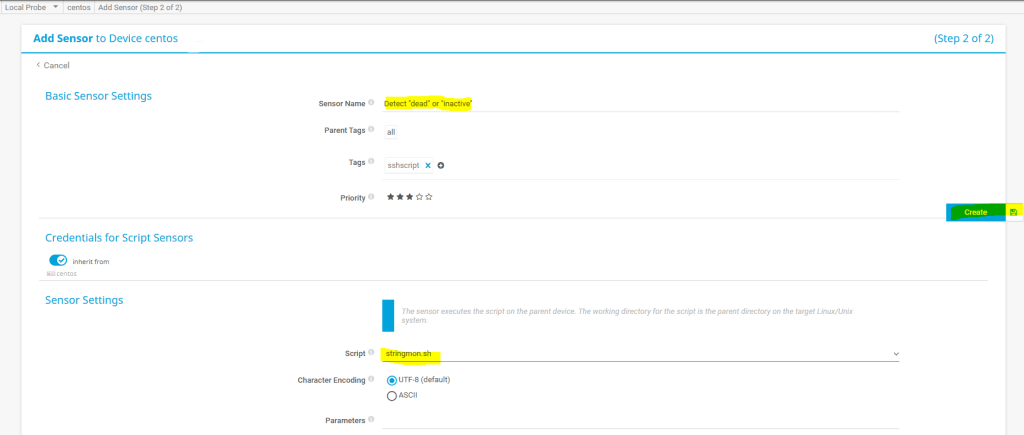
4- Below is the sensor is up state when service is running

Below is the sensor in down state when the words are detected (when the service is not running)

Full script: replace text1 & text2 values and “systemctl status swap.target” with the words and command you want to check as we did in above explanation.
#!/bin/bash

text1=dead
text2=inactive

res=$(systemctl status swap.target | grep -e $text1 -e $text2)
if (systemctl status swap.target | grep -q -e $text1 -e $text2); then
    echo "4:3:Check from server side for full details: "$res
else
    echo "0:1:No issue detected. "$res
fi Fingerprint in IT
Leave a comment